How to add a Left widget on your iPhone Home Screen
Your Left countdowns and progress widgets can live right on your iPhone Home Screen, updating throughout the day. Here's how to add them in a few taps.
Step 1 - Set up your event in Left
Before adding a widget, create or customise the event you want to display:
- Open the Left app on your iPhone.
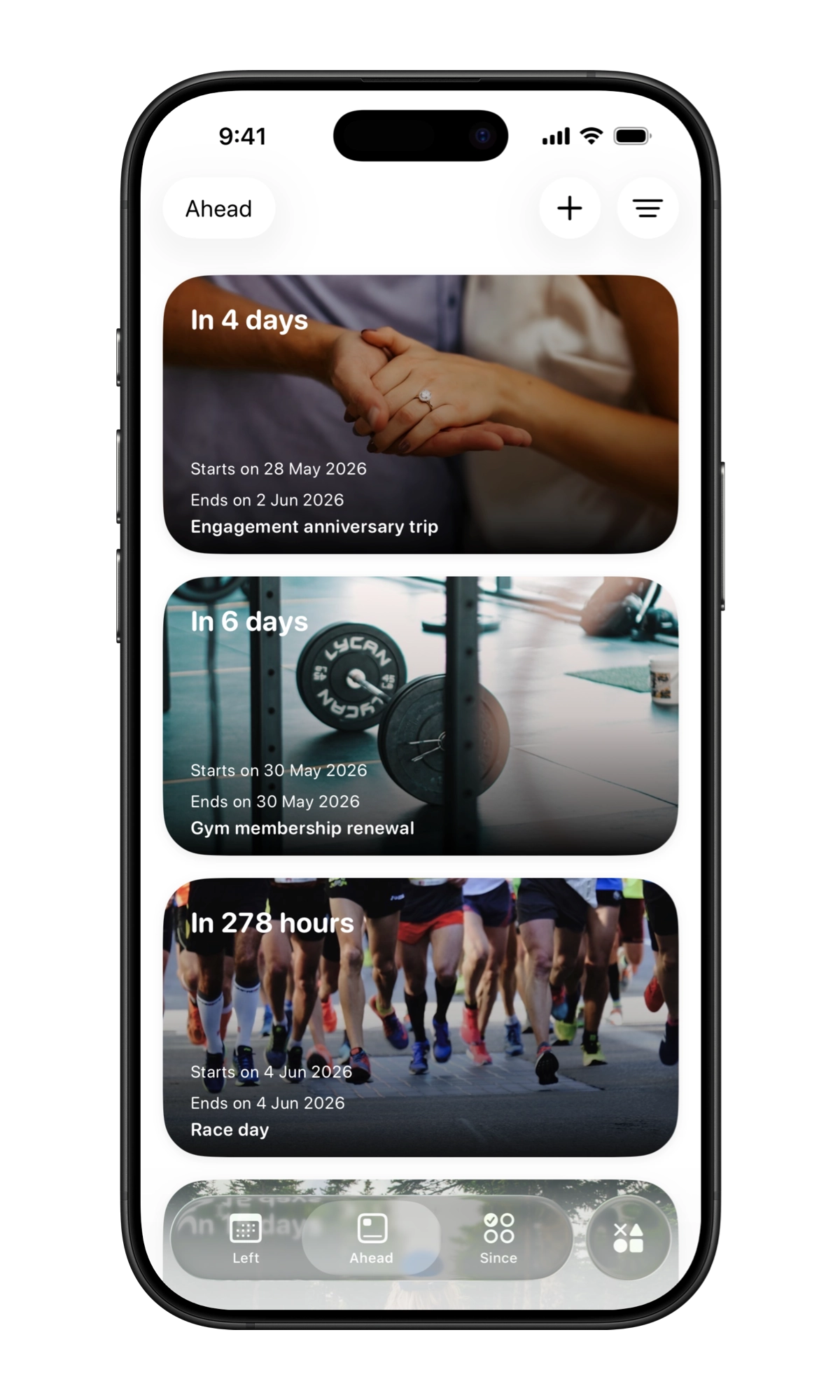
- Go to Ahead and tap + to add a date. For a habit, streak or Aim, use Since instead.
- Give it a name and set the date. You choose how it looks on the widget later, in Step 3.
- Tap the checkmark to save.
Step 2 - Add the widget to your Home Screen
- Go to your iPhone Home Screen and long-press on any empty area until the icons start to jiggle.
- Tap Edit at the top of the screen, then tap Add Widget.
- Search for "Left" in the widget gallery, or scroll to find it.
- Tap Left, then swipe through its widgets and sizes. For a countdown, pick Ahead; when you see the size you want, tap Add Widget.
- Drag the widget to your preferred Home Screen position, then tap Done.
Step 3 - Choose which event the widget shows
- Long-press the newly added Left widget.
- Tap Edit Widget.
- Tap Select date and choose the date you want to show. Below it you can change the layout (Text or Grid), the time unit, the theme and the background.
- Tap anywhere outside the widget to save.
Changing the widget size
Left widgets come in up to three Home Screen sizes, and the widget gallery shows which ones each widget offers:
- Small (2×2) - the space of four app icons. Shows one date or count at a glance.
- Medium (4×2) - two rows of four app icons. List widgets such as Time Ahead list and Streaks list start at this size.
- Large (4×4) - four rows of four app icons, the most room for any widget.
To change the size, remove the widget and add it again in the size you want.
Tips
- Widgets update periodically - iOS controls the exact refresh frequency to preserve battery. For the most current time, open the Left app directly.
- You can add multiple Left widgets pointing to different events across multiple Home Screen pages.
- For a countdown that's visible even when your phone is locked, see the Lock Screen widget guide.
See also: the countdown widget for iPhone and the year progress widget.
Download Left
Start noticing what matters.
Download Left on your iPhone to see the time you have left, dates you are looking forward to, build the habits you want to keep, and become a better version of yourself.
Scan or search "Left" on the App Store.